


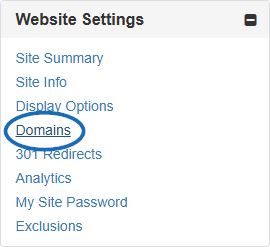
When you purchase an ESP Website or Company Store, the domain provided will end in ".espwebsite.com" (for ESP Websites) and ".logoshop.com" (for Company Stores). All domains provided within the ESP Websites admin have an SSL certificate. To add an espwebsite or logoshop domain, expand the Website Settings section and click on Domains.
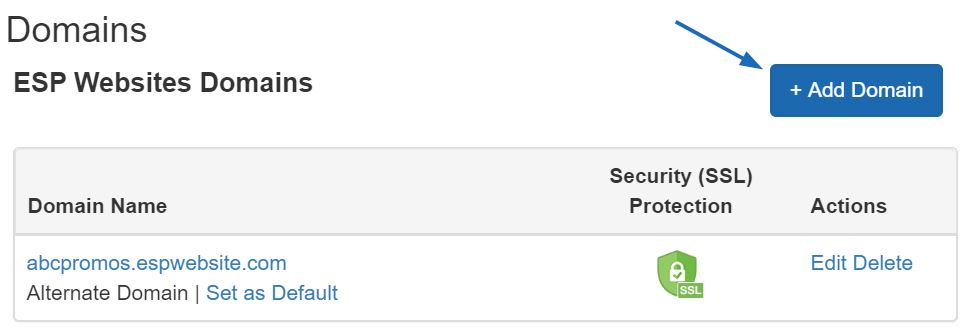
Then, click on the "Add Domain" button, update the URL, and then click on the "Add" button. To update an existing URL, click on the "Edit" link in the Actions section.
Add a Custom Domain
If you have a custom domain name, you are able to redirect it to your ESP Website or Company Store.
To add a custom domain name, click on the "Add Custom Domain" button.

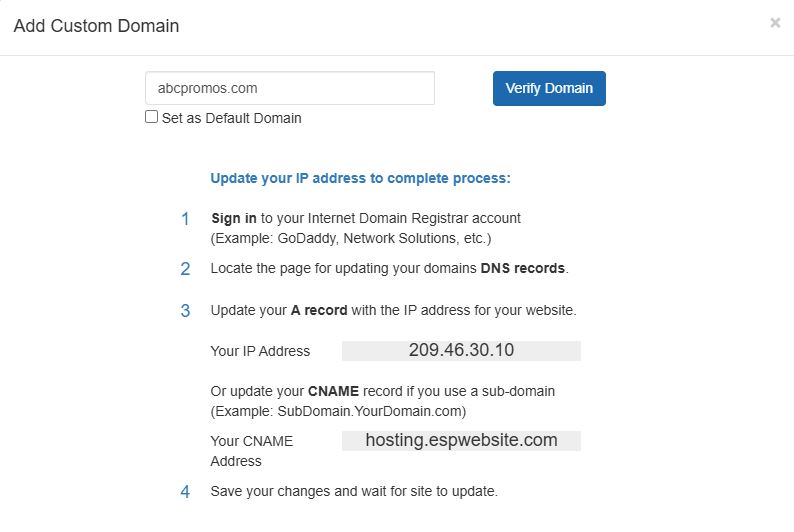
Then, type your new domain name into the field and follow the steps in the "Add Custom Domain" window.
Redirect Your Domain
If you have selected to use a custom domain, type the domain name – for example: "ABCpromo.com".
You will need to set up a redirect to point your custom domain to your ESP Website. Contact your domain host (GoDaddy, Network Solutions, etc.) and have them redirect the domain name by pointing the A record to the provided IP address (209.46.30.10). When you are ready, click on the Verify Domain button and a success message will appear.
Important:
- If you have multiple domains which point to the same page, unless a specific URL is designated as the default page, Google will select which URL to display in search queries, which can affect the SEO for your site. For example, if you had two URLs for your site: "www.companypage.com/espwebsite" and "www.companypage.espwebsite.com", but do not specify a default page, Google will toggle between the two URLs, meaning that the SEO traffic for your site will be split and proper weight will not be applied to ranking. By select a default, Google will be directed into a single URL, allowing for proper identification of your site for SEO purposes.
- If you would like to include the domain with a "www." you will need to add a second custom domain.